



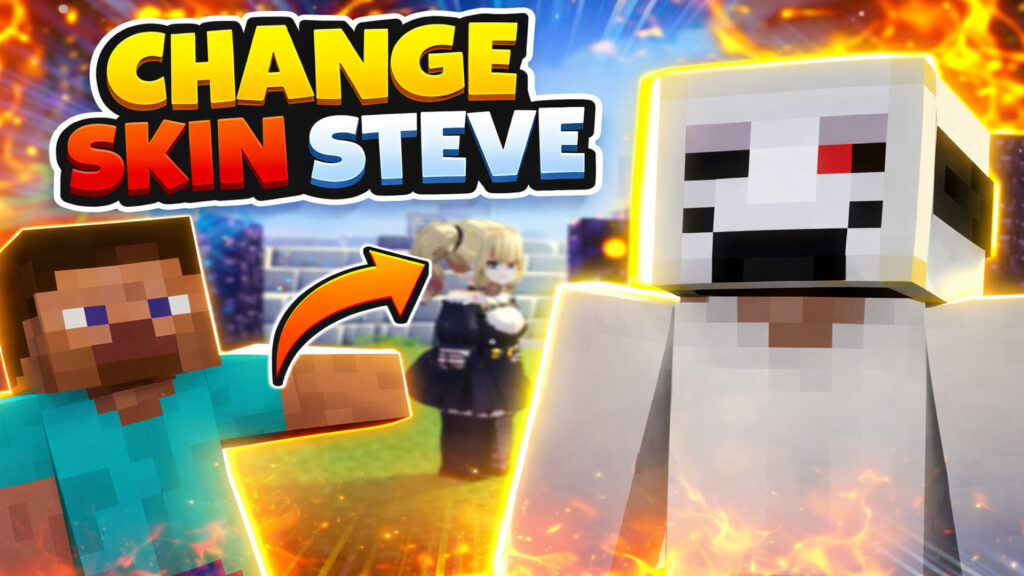
Changing the default character skin in Jenny Mod Minecraft is a simple way to personalize your gameplay. By default, the character usually uses the Steve skin, but with a few easy steps, you can replace it with any skin you like.
In this guide, you’ll learn how to change the Steve skin in Jenny Mod quickly and safely, even if you’re a beginner.
Table of Contents
What You Need Before Starting
Before we begin, make sure you have the following:
- Jenny Mod installed (Minecraft Java Edition)
- A custom Minecraft skin (
.pngformat) - WinRAR or any ZIP file manager
- Access to the Minecraft
modsfolder
Step 1: Install Jenny Mod
First, make sure the Jenny Mod is properly installed in your Minecraft Java Edition.
If the mod is not installed, the skin change will not work.
Step 2: Choose a Skin You Like
Next, find a Minecraft skin that you want to use.
In this tutorial, we’ll replace the default Steve skin, but you can use any skin you prefer.
Step 3: Rename the Skin File
The Jenny Mod uses a default skin name.
- Rename your skin file to:
steve.png
This step is very important. If the name does not match, the mod will not load the new skin.
Step 4: Change the Mod File Extension
Now, locate the Jenny Mod file.
- Change the file extension from
.jarto.zip - Open the file using WinRAR
👉 Tip:
If you don’t see .jar or .zip, enable File name extensions in Windows File Explorer, as they may be hidden by default.
Step 5: Replace the Default Skin
Inside the ZIP file:
- Navigate to the folder that contains the default skin
- Find the file named
steve.png - Drag your new
steve.pnginto the folder - Overwrite the old file when prompted
This will replace the default skin with your custom one.
Step 6: Rename the File Back to .jar
After replacing the skin:
- Close WinRAR
- Rename the file from
.zipback to.jar
This restores the mod to its original format.
Step 7: Move the Mod Back to the Mods Folder
Finally:
- Place the edited mod file back into the Minecraft
modsfolder - Launch the game
💥 Done!
The skin will be changed immediately when you enter the game.
Final Result
Once you load into Minecraft, you’ll see that the Steve skin has been successfully replaced with your new skin in Jenny Mod.
This method is simple, safe, and works perfectly for customizing your Jenny Mod character.
Conclusion
Changing the Steve skin in Jenny Mod Minecraft is easy and only takes a few minutes. With this method, you can fully personalize your character and enjoy a more unique Minecraft experience.
Good luck, and have fun playing!
sdaad